Creating a Cutting Plan
NOTE: To create a cutting plan, you must purchase the cutting plan creation rights for the project. For more details, see: Purchase Guide.
To create a Cutting Plan, use the "Create Cutting Plan" dialog accessible from the Project Creation Page of the relevant project.
Accessing the Create Cutting Plan Dialog
- To access the Create Cutting Plan Dialog, click the Create Cutting Plan button visible in the top navigation bar while on the Project Review Page of the relevant project or on the Cutting Plan Review Page of any cutting plan belonging to that project. This button is not visible when you are not on the project review or cutting plan review pages.

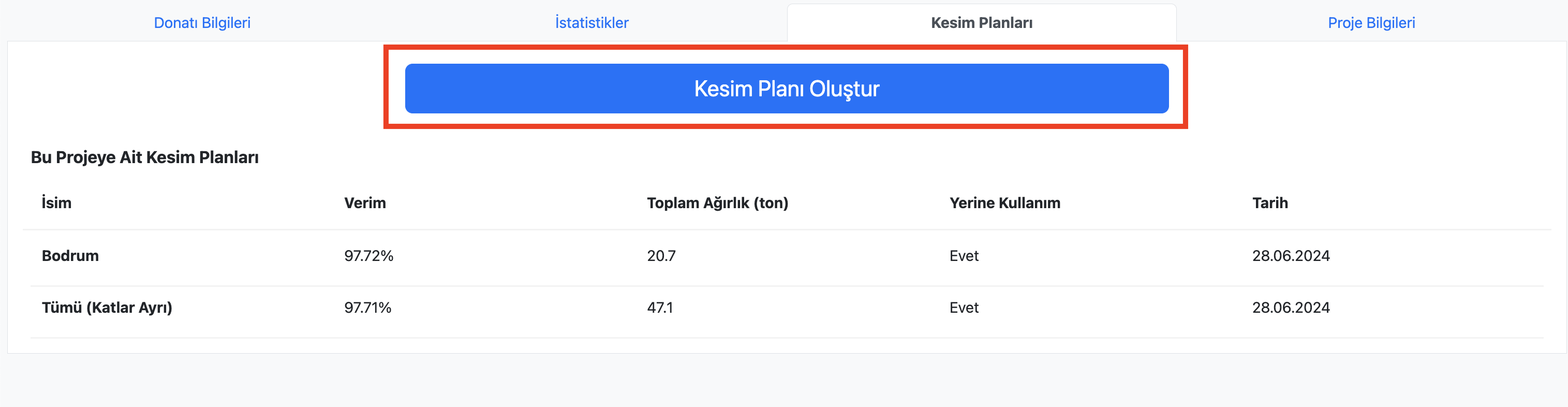
- Alternatively, you can click the Create Cutting Plan button in the Cutting Plans tab of the Project Review Page of the relevant project.
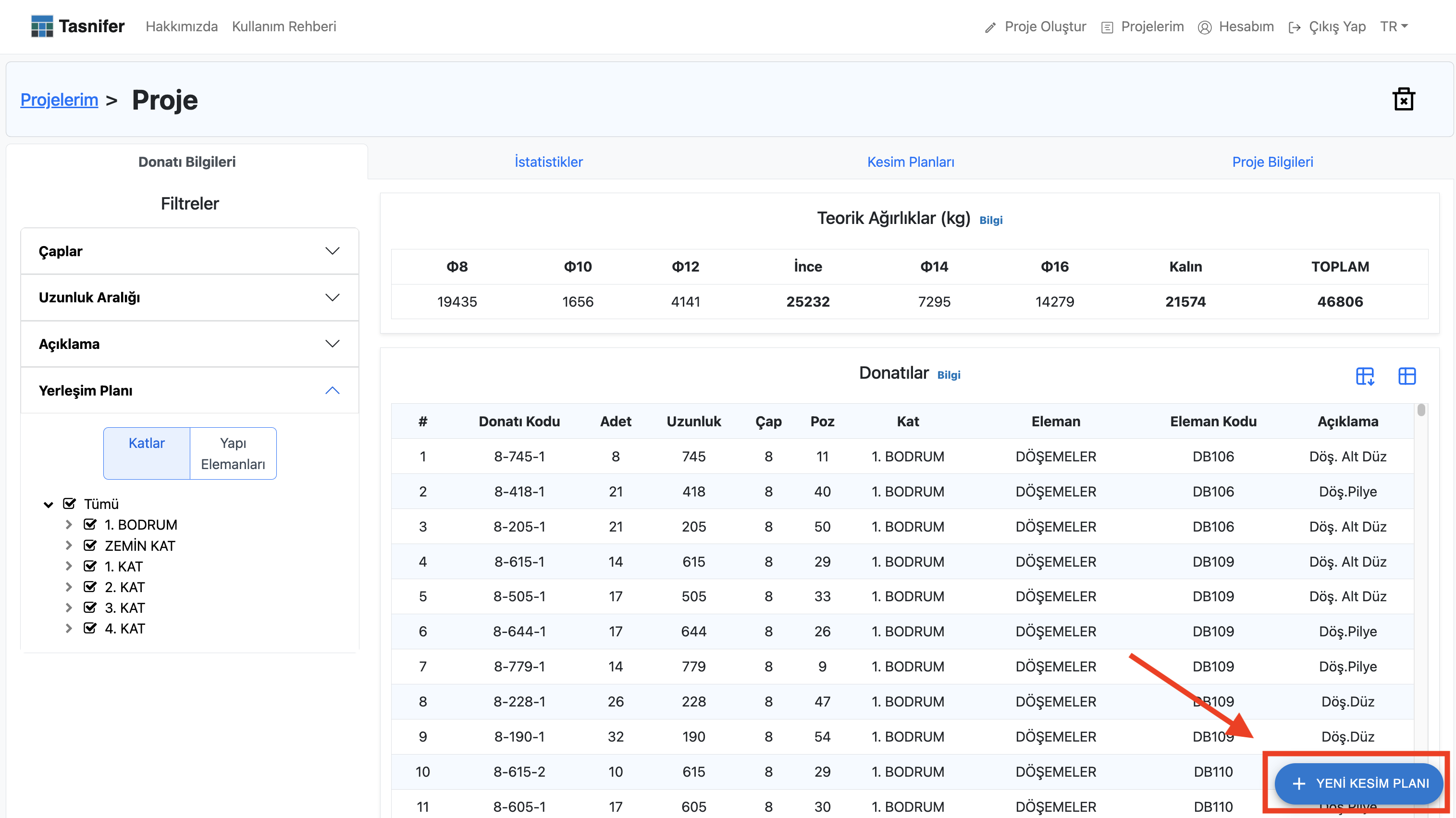
- Or, you can click the "New Cutting Plan" button located at the bottom right corner of the page.
Cutting Plan Creation Dialog
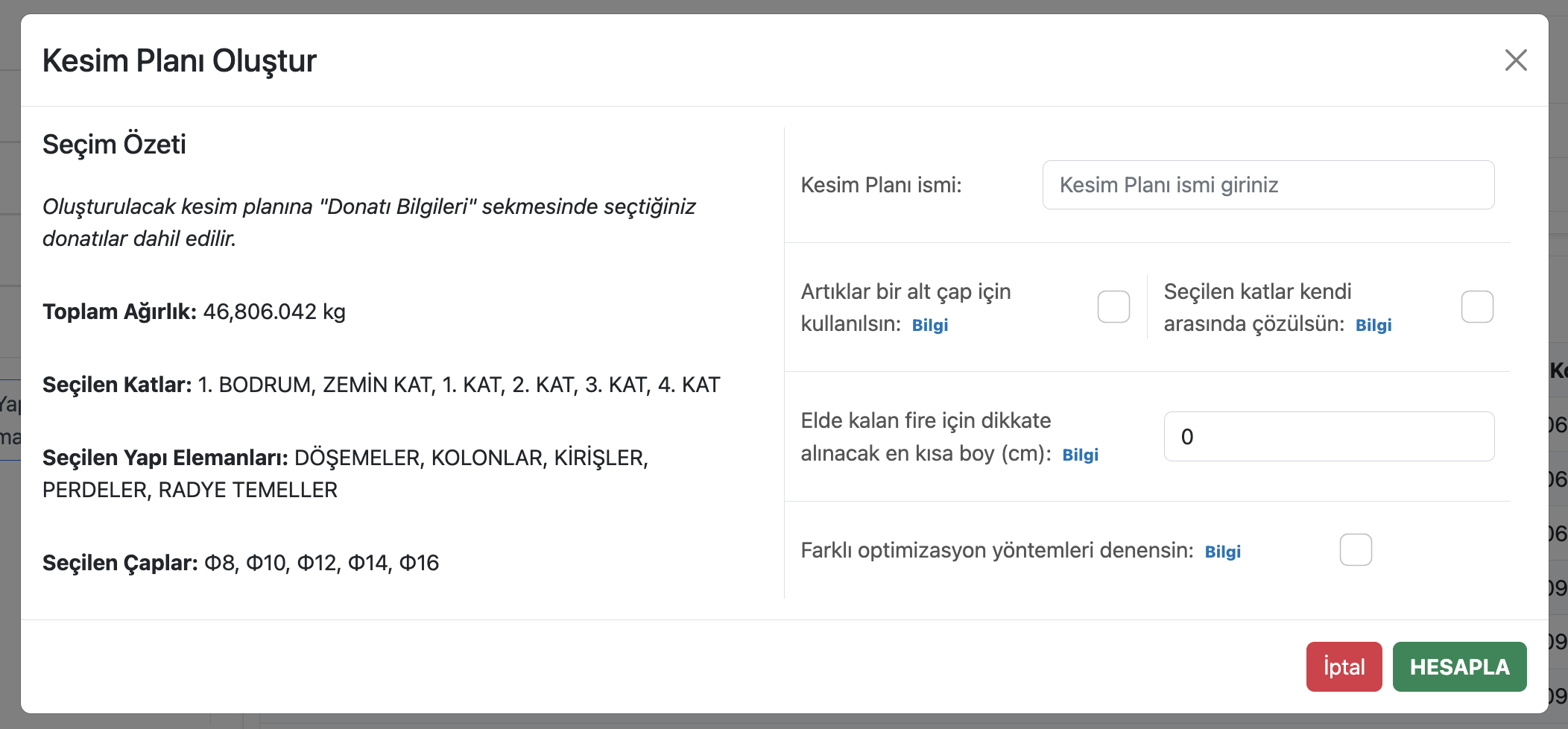
The rebar cutting plan creation dialog is as follows.
Creating a New Cutting Plan
To create a cutting plan from a rebar project:
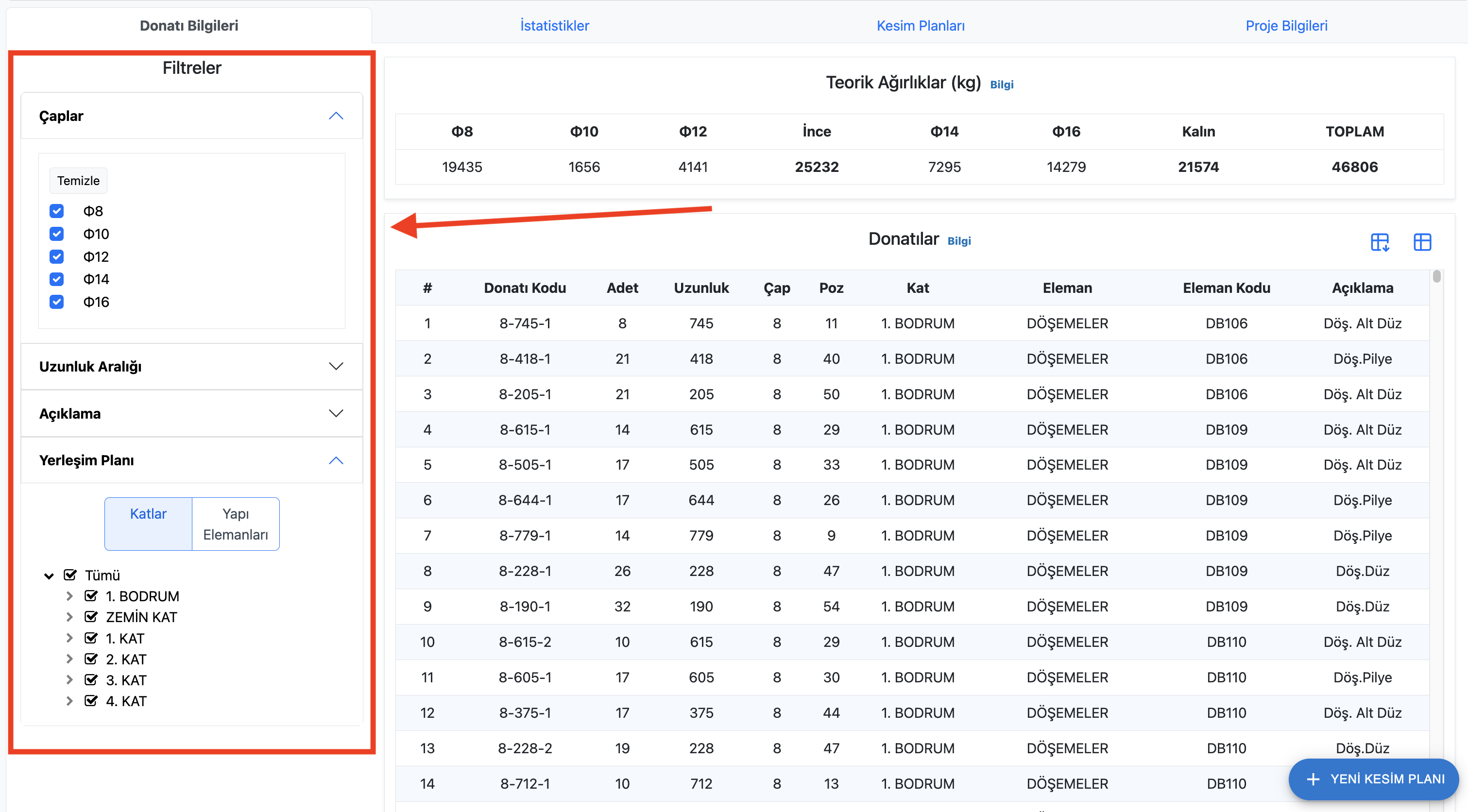
1. On the Rebar Information tab of the Project Review Page of the relevant project, filter and select the rebars you want to include in the cutting plan. You can apply filters for diameter, length range, description, and layout plan.
1. Open the Create Cutting Plan Dialog as described above.
2. Enter a name for the cutting plan.
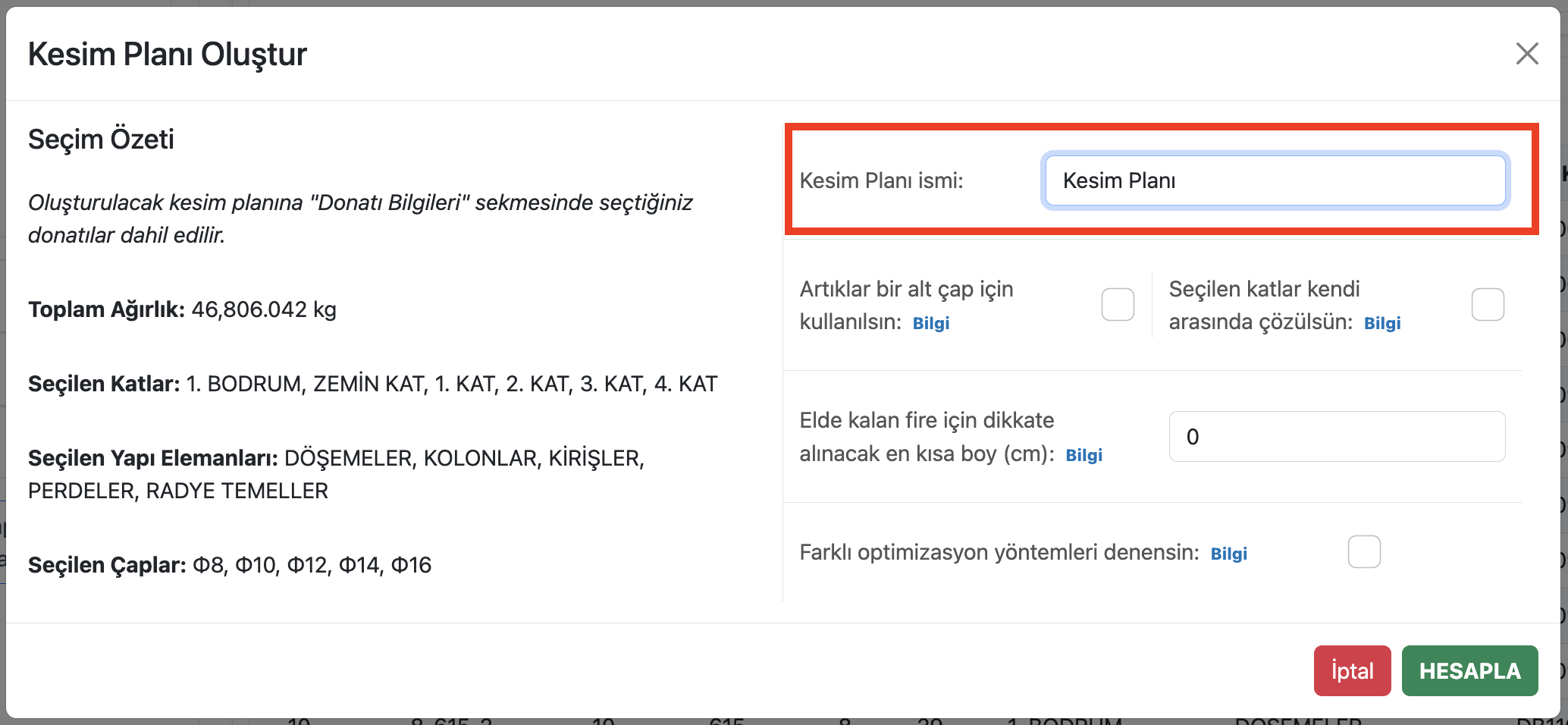
3. Adjust other optimization options.
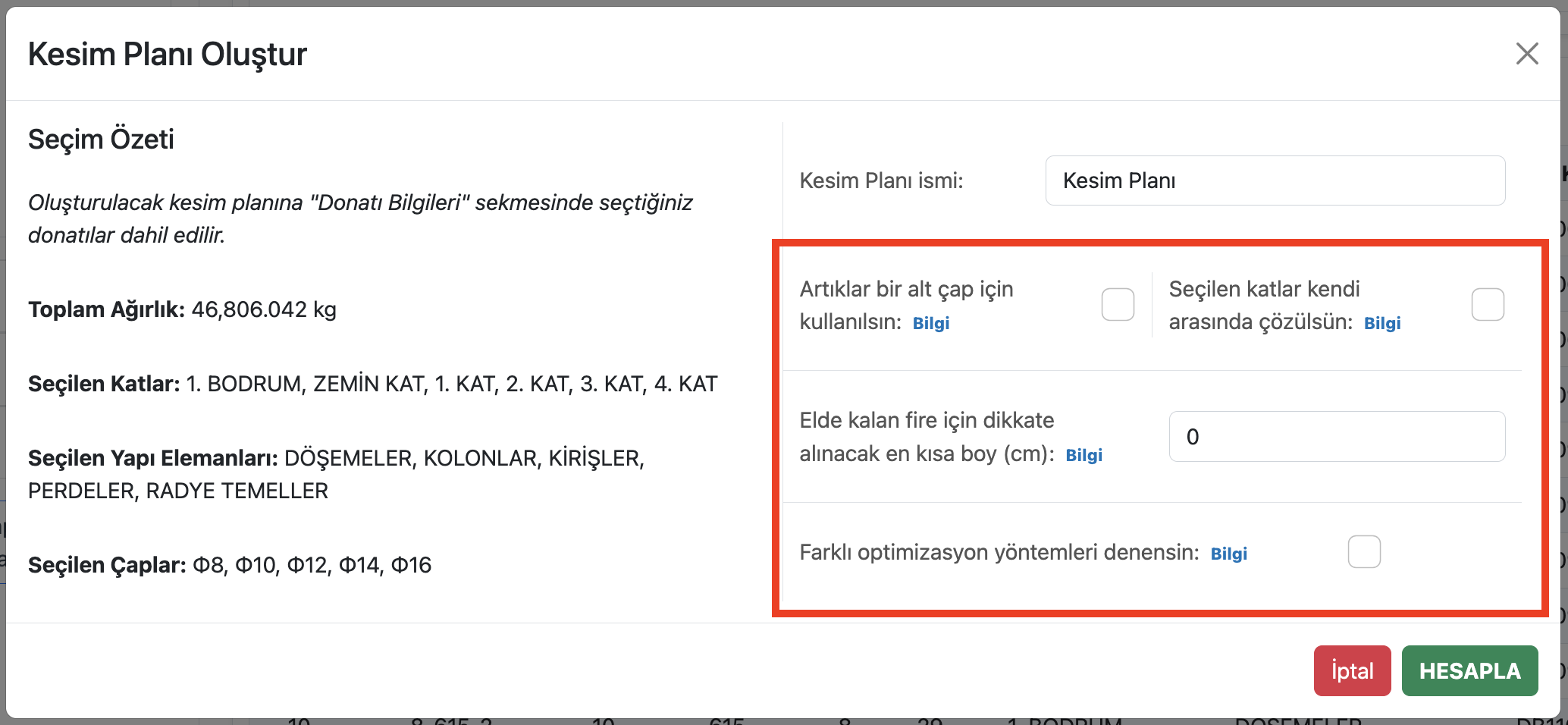
These options are:
- Use leftovers for the next smaller diameter: Optimization starts from larger diameters and proceeds to smaller ones. If you select this option, leftovers from one diameter will be used for suitable rebars of the next smaller diameter. For example, suitable leftovers from Φ12 will be used for Φ10 rebars.
- Optimize selected floors separately: With this option, rebars from selected floors are optimized within themselves in the resulting cutting plan. Rebars from different floors will not be on the same cut. Since rebars from different floors are not allowed on the same cut, the efficiency may be lower and the amount of steel used may be higher.
- Minimum length to consider for leftover: When calculating leftover at the end of the cutting plan, leftovers shorter than the value entered here will not be considered. These will be assumed to be left as the last piece. In the theoretical leftover calculation, all leftovers are considered.
- Try different optimization options: Tasnifer can try different optimization algorithms. When this option is selected, the system will try different optimization methods to find the best result. This process may take much longer and there is no guarantee that better results will always be achieved. It is recommended for cutting plans with a small number of pieces.
After pressing the CALCULATE button, optimization will begin.
The duration of the optimization process depends on the lengths and quantities of rebars in the cutting plan. If the cutting plan contains many and various pieces, the optimization process will be queued and solved in the background by Tasnifer servers. More details will be provided in the following sections.